You spent money getting people to your website. They found you, clicked around, and landed on your booking page. Then they left without booking. Sound familiar?
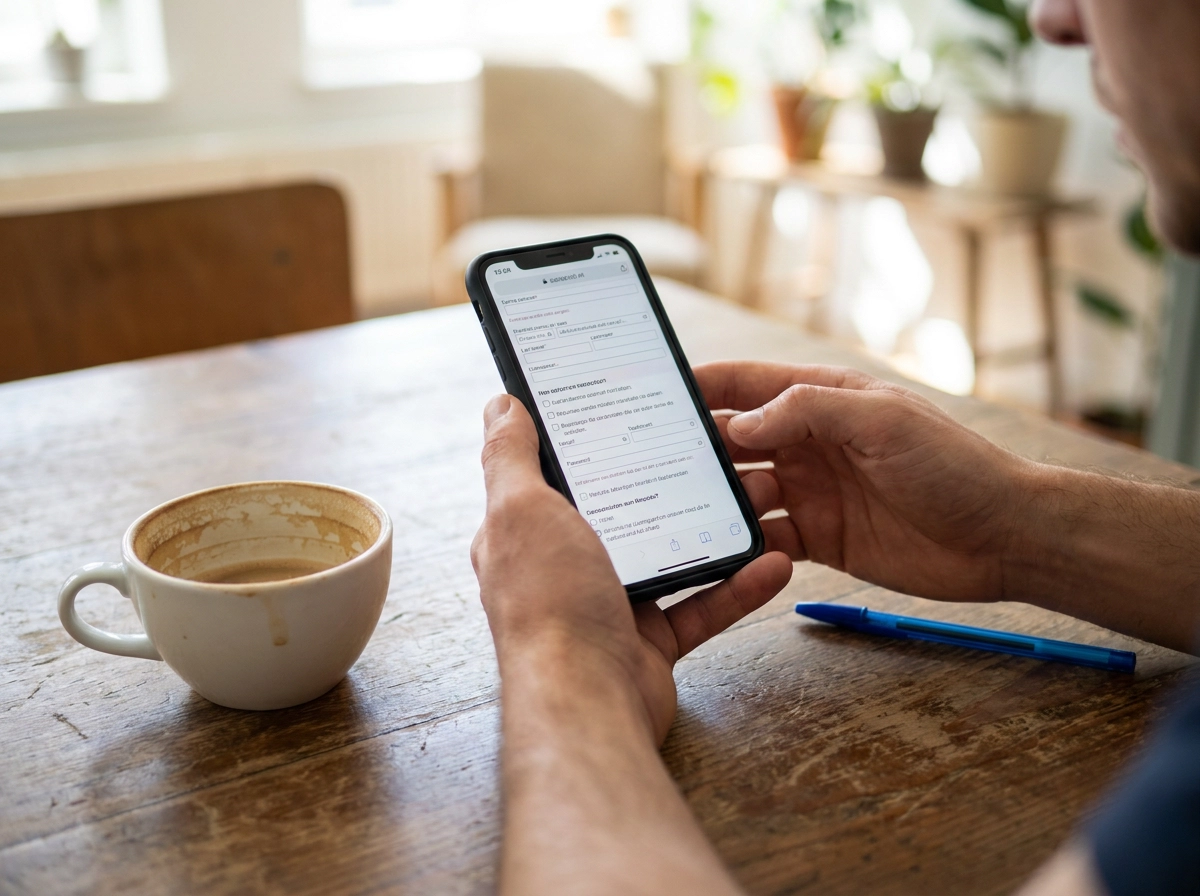
For most service contractors, the booking page is where potential customers either commit or disappear. And the frustrating part is that it usually comes down to one of two problems: you asked too much and they bailed, or you asked too little and showed up to a job with no idea what you were walking into.
Getting this balance right is not just about good design. It connects directly to how your entire operation runs, especially if you are using a field service management app to handle scheduling, routing, and customer communication behind the scenes. What happens on that booking page sets everything else in motion.
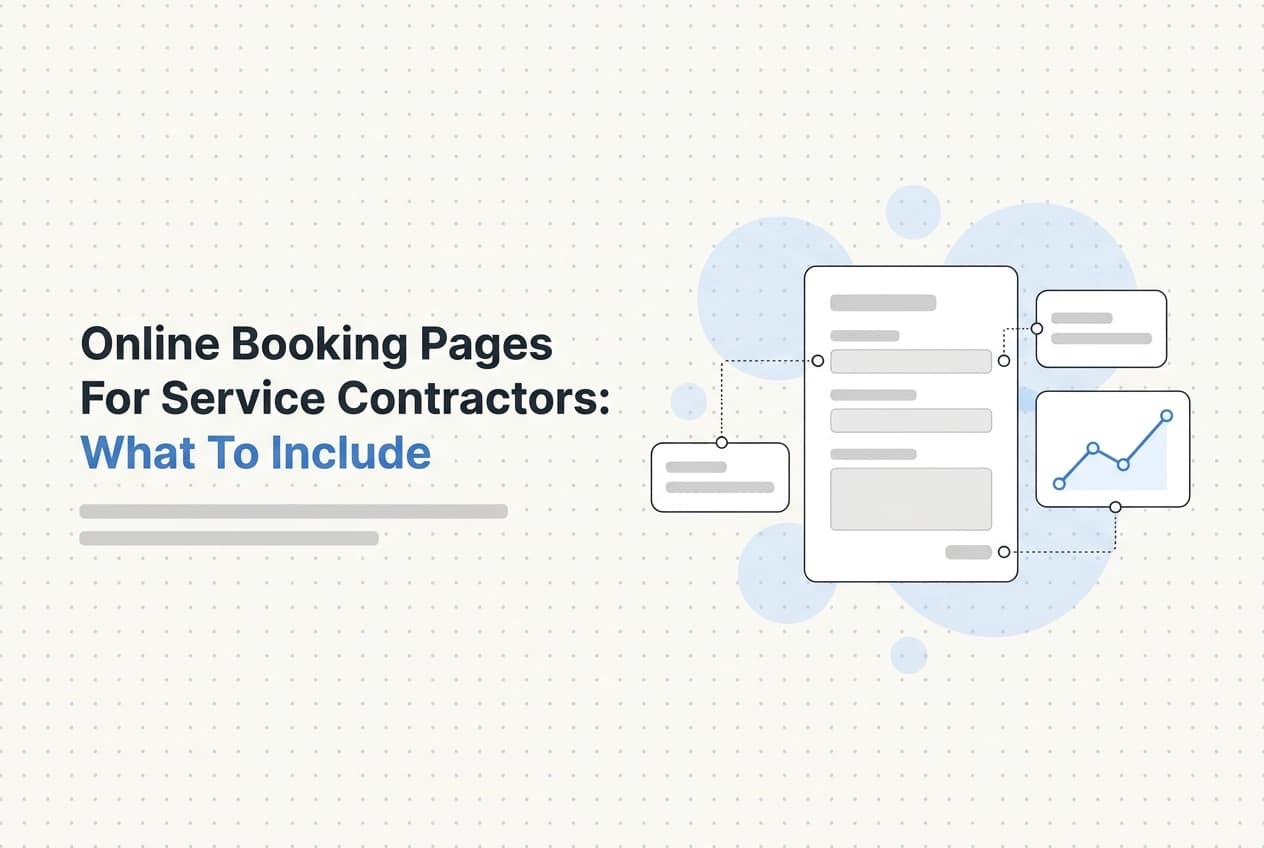
In this post, you will learn exactly what to include on your booking page, what to leave out, how to show availability without overwhelming people, whether to list pricing, and what to do after someone hits submit. By the end, you will have a practical template you can actually use.
The Two Ways a Booking Page Fails You
Your booking page is losing you jobs in one of two ways, and most contractors never notice either one.
Too many fields and the customer closes the tab. They were on their phone, you asked for their equipment model number, HOA contact, and last service date before they even picked a time, and they gave up. They called the next guy on Google instead.
Too few fields and you show up blind. No gate code, no idea whether there's a dog in the yard, no clue if this is a 20-minute fix or a half-day job. Your tech is standing at the door calling the office while the customer wonders why you aren't prepared.
Both cost you real money. The first one hands the job to a competitor. The second one slows your tech down, burns more labor, and frustrates a customer who may not call you back.
Generic advice says: shorten the form, remove friction, make it easy. That works fine if you're selling a download. It doesn't work for a service contractor who needs enough information to actually dispatch a truck.
The fix isn't a shorter form or a longer form. It's asking the right questions at the right time.
What to Ask First: The Fields That Cannot Wait
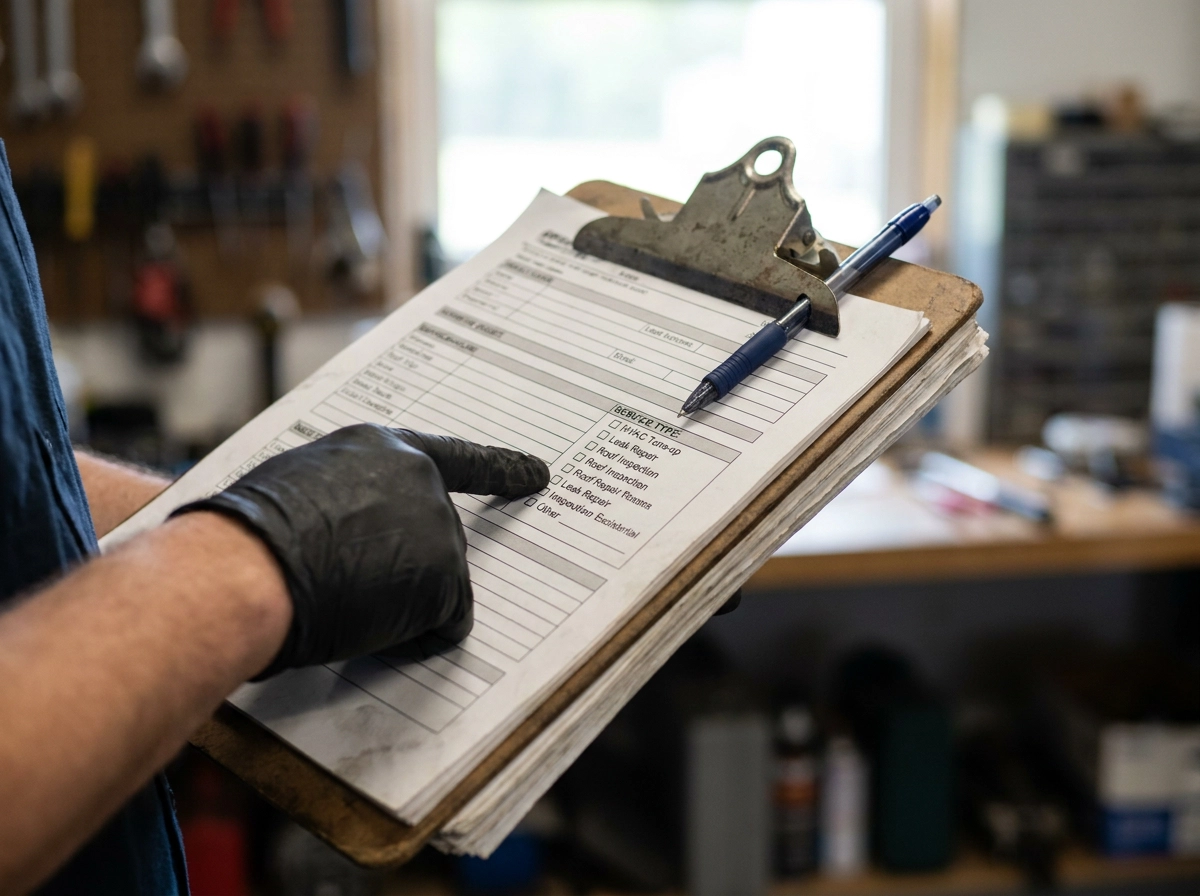
So here are the fields that belong on screen one, and nothing else.
Service type comes first. A dropdown with your actual services, like HVAC tune-up, leak repair, or roof inspection, tells you which tech to assign and which calendar slots to show. Skip it and every booking lands in a pile for someone to sort later.
Location or zip code confirms you cover the area before the customer goes further. If you run crews in multiple zones, this field routes the booking to the right calendar automatically.
Is this an emergency? A simple yes/no. If yes, the customer should not be looking at a slot two days out. They need a call or text right now. That one question changes the entire path.
Name and a phone number. Enough to reach them if something changes before the appointment. Everything else can wait.
Preferred date and time window. Show real open slots, not a blank calendar. When customers see actual availability, they pick something and commit. A blank picker makes them guess, and guessing leads to tab-closing.
Five fields. Six at most. That is the whole first screen.
Every field you add beyond that increases the chance someone quits before they finish. If you are wondering whether your current setup is working against you, it is worth reading what an all-in-one CRM for home service businesses actually does, because the booking page is only as useful as the system it connects to.
What Can Wait Until After They Book
Here is what to move off the form entirely:
Gate codes, HOA details, and parking instructions. You need these before the tech shows up, not before the customer commits. Send a confirmation text after booking and ask for them there. Most customers reply in seconds.
"When was your last service?" This rarely changes how you dispatch the job. It just adds friction. Research on form design consistently shows that each extra field reduces the chance someone finishes. If a field does not affect who you send or when, pull it out.
Photos of the problem area. Useful for quotes, yes. But ask by text after the booking is locked in. Most customers will send photos once they know someone is coming.
Equipment model numbers for HVAC or appliance jobs. These matter, but the right moment to ask is the day-before reminder text, not the booking form. Customers often do not have that information handy anyway.
The goal of your booking form is one thing: get the commitment. Everything else can come later.
Tools like HandsFreeOS handle this automatically. Once someone books, it sends follow-up texts to collect the details you deferred, with no manual work from your office. That is the kind of action-taking AI that actually saves time, not just answers questions.
How to Show Availability Without Creating Chaos
Once your form fields are trimmed down, the next thing that makes or breaks a booking is how you show your availability.
Start with a live calendar. If your booking page pulls from your real schedule, customers only see slots that actually exist. No double-bookings, no awkward calls the next morning to tell someone you are already full that day.
Show time windows, not exact times. Offer "8am to 12pm" instead of "9:15am." That gives your tech room to finish the previous job, drive over, and not arrive late by definition. It also sets honest expectations for the customer.
If you run more than one crew, or cover different parts of town, the calendar should filter by the customer's zip code and service type. A commercial refrigeration call and a residential AC tune-up should not be competing for the same slot.
Block out the gaps, not just the jobs. Travel between stops, setup time for bigger jobs, and a buffer for the call that always runs long. A calendar that looks packed at noon but has no breathing room is a calendar that falls apart by 2pm.
Here is something contractors miss: a fully open calendar feels wrong to customers. If every slot for the next three weeks is wide open, it reads as "nobody else is booking this person." Real constraints build trust.
A calendar customers book themselves into, without double-booking anyone handles all of this automatically. A booking made Sunday night shows up on Monday morning's schedule without anyone typing it in.
Should You Show Pricing on Your Booking Page
Once your calendar looks trustworthy, the next thing a customer silently asks is: "Can I even afford this?"
If your booking page says nothing about price, many people won't book. They don't want to hand over their name and phone number and then get hit with a number they weren't expecting.
You don't need an exact price. A line like "Service calls start at $89" or "Flat-rate drain cleaning: $149" gives customers enough to feel comfortable moving forward. If your pricing is more complicated, a short note works just as well: "We quote after the inspection, usually within 24 hours."
For predictable jobs, show the price. Dryer vent cleaning, annual tune-ups, standard drain clearing: these have consistent costs. Putting the number on the page removes the last hesitation before someone hits "Book Now."
For variable jobs, explain the process instead. Roofing, electrical panel work, full system replacements: the price depends on what's actually there. Saying "we quote after the inspection" is honest and it works better than leaving the pricing field blank, which just creates doubt.
The customer is always quietly asking one question before they give you their contact information: "Will I be able to afford this?" A starting rate or a plain-English explanation answers that question. A blank page doesn't.
The Confirmation Message Most Contractors Ignore
Once pricing is settled, the customer hits submit. That is the moment you have their full attention. Most contractors waste it with a generic "booking received" message and nothing else.
That one screen, and the text or email that follows, does more work than people realize.
Restate the details clearly. Tell them exactly what they booked: the service type, date, and time window. Something like "Your HVAC tune-up is scheduled for Thursday, June 12, between 8am and noon." This reassures the customer nothing got scrambled and gives them something to check against their calendar.
Give them a direct way to reach you. Include a phone number or text line. When rescheduling is easy, people do that instead of simply not showing up. A quick reschedule beats an empty driveway every time.
Tell them what happens next. A short line like "We will text you the morning of your appointment with your tech's name and arrival window" sets honest expectations and cuts day-of calls asking where your crew is.
Collect the details you deferred earlier. Right after booking is the right time to ask for gate codes, parking instructions, or a photo of the problem area. Those same questions on the booking form would have caused drop-off. This is also a good point to read about why your quotes go cold and how automated follow-up fixes it, since the same logic applies.
Field service software for small business that fires this confirmation automatically means nobody on your team has to remember to send it. The booking comes in, the message goes out, and the deferred questions get asked, without anyone touching a keyboard.
How the Booking Page Connects to the Rest of Your Workflow
That confirmation message is just the beginning of what a connected system can do.
A standalone booking page is better than nothing. But when your booking page talks directly to your CRM, your job calendar, and your follow-up texts, that is where you stop losing hours to admin work.
When a booking comes in, the system does the work. A job record gets created automatically. The right tech gets assigned. The customer gets a confirmation. Nobody on your team has to touch a keyboard. That is the difference between a booking page and a booking system.
Abandoned forms do not have to mean lost jobs. If someone fills out half the form and closes the tab, an automated text asking "did you have any trouble booking?" can bring them back. That one follow-up recovers jobs that would otherwise disappear. If you want to understand how much a single unanswered moment can cost, The Job You Lost Last Week: How a Missed Call Becomes a Lost Customer walks through exactly that.
The data from that first form feeds everything downstream. Pre-visit reminder texts, post-job review requests, unpaid invoice nudges: they all start from what the customer typed in when they booked.
HandsFreeOS connects the booking page, the job calendar, and the automated follow-up sequence so you do not have to wire it together yourself. It works with the calendar and inbox you already have.
For a 2 to 10 person shop, that is the difference between running your business and your business running you.
A Quick Booking Page Checklist for Service Contractors
Here is everything in one place. Print it out or save it somewhere you can reference it when you build or update your page.
On the form:
Service type (HVAC tune-up, roof inspection, drain cleaning, etc.)
Location or zip code
Emergency flag (yes/no)
Name and phone number
Preferred date and time window
Availability display:
Live calendar showing real open slots, not a blank date picker
Time windows like "8am to noon," not exact times
Location-aware slots if you cover multiple areas or run multiple crews
Pricing:
A starting rate, a flat service call fee, or a short plain-English note explaining how you quote
Do not leave this blank
Confirmation message:
Recap of the booking details
A direct number the customer can text or call
A note on what happens next
A short follow-up request for the details you deferred
Connected to:
Your job calendar
Your CRM
An automated confirmation text or email that fires the moment the form is submitted
Not on the form:
Gate codes, HOA info, equipment model numbers, property history, photos
Collect all of these after the booking is confirmed
That is the whole picture. If you want to know exactly what HandsFreeOS collects and stores when customers use your booking page, what we collect is on our privacy page. And if you want to get a booking page like this set up without wiring it all together yourself, ask for one of the seats while they are available.
Get the Booking First, Then Get the Details

Now that you have the checklist in hand, here is the one idea that ties all of it together.
The best booking page is the one the customer actually finishes. A perfect form that no one completes is just a broken front door. Ask for the essentials first, push the details to after the booking is confirmed, show real availability, and be straight about pricing. That order is what keeps people from closing the tab.
The confirmation message is part of the job too. It is not just a receipt. It sets expectations, gives the customer a way to reach you, and kicks off the follow-up that collects everything else you need before you show up.
The real time savings come when the booking page is connected to a field service management app that handles the calendar, sends the confirmation, and runs the follow-up automatically. No one on your team has to remember to do any of it. A job booked at 9pm on a Tuesday lands on your calendar before you wake up Wednesday morning.
That is what HandsFreeOS is built for. The booking page, calendar, follow-ups, and customer records are all connected from the start. If you want to see it working, start free at handsfreeos.com.
Conclusion
A booking page that actually converts comes down to a few core decisions: ask only for what you need upfront, delay the details until after the commitment is made, show honest availability, and be transparent about pricing. Get those four things right and fewer customers will abandon the process halfway through.
The confirmation message and the follow-up sequence are not afterthoughts. They are the bridge between a new booking and a job that goes smoothly from the start.
When your booking page connects directly to your calendar, your reminders, and your customer records, the whole system runs without you manually holding it together.
If you are ready to stop stitching tools together and start booking jobs while you sleep, HandsFreeOS was built for exactly that. Start free at handsfreeos.com and see how much smoother your front door can work.